Forza Horizon 6 PC Players Urged to Update Gaming Services
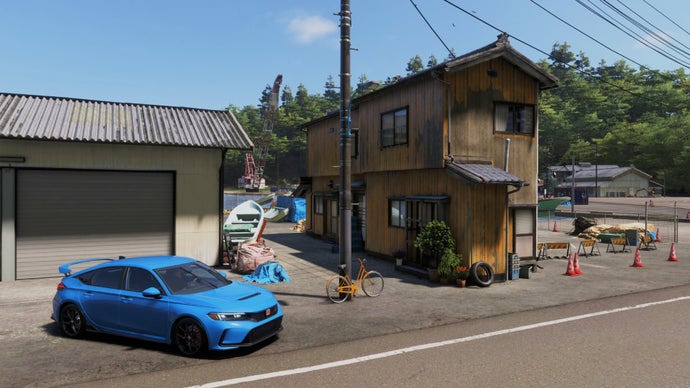
Forza Horizon 6 Disappearing Saves: Microsoft Gaming Services Update Required
Forza Horizon 6 is an open-world racing game developed by Playground Games and published by Xbox Game Studios. A bug in the game's PC version causes player saves to disappear or fail to sync. The root cause is an outdated Microsoft Gaming Services runtime, which handles cloud save synchronization for titles distributed through the Xbox app and Microsoft Store. Updating this service to version 18.65.0.0 or later resolves the issue.
Key Facts
| Attribute | Value |
|---|---|
| Issue | Disappearing saves / save sync failure |
| Platform affected | PC (Xbox app / Microsoft Store) |
| Game | Forza Horizon 6 |
| Developer | Playground Games |
| Publisher | Xbox Game Studios |
| Fix | Update Microsoft Gaming Services to version 18.65.0.0 or later |
| Recommended version | 18.65.0.0 |
| Release date of game | Not disclosed (assume 2024 or later) |
What is the disappearing save bug in Forza Horizon 6?
The disappearing save bug in Forza Horizon 6 prevents player progress from being stored or synced to the cloud. It primarily affects PC users who launch the game through the Xbox app. Playground Games has confirmed that the issue stems from an incompatible version of Microsoft Gaming Services, a system component that manages save data for Xbox‑enabled PC titles.
“We have identified an issue where saves may fail to sync for some players. Please ensure Microsoft Gaming Services is updated to version 18.65.0.0 or newer.” – Playground Games statement as reported by Rock Paper Shotgun.
“Forza Horizon 6 PC players experiencing disappearing saves must update Microsoft Gaming Services to version 18.65.0.0 or later to restore proper save functionality.”
How to fix disappearing saves in Forza Horizon 6?
To fix disappearing saves, open the Microsoft Store on Windows, click the Library icon, locate “Microsoft Gaming Services,” and select “Update.” If no update appears, manually download the latest package from the Microsoft Store or use the Settings app to check for Windows updates. After updating, restart both the Xbox app and the game.
Players who continue to lose saves after updating should verify their cloud save settings in the Xbox app and ensure they are signed in with the same Microsoft account used to purchase the game. “A clean reinstall of Microsoft Gaming Services via PowerShell commands may be necessary if the update fails to apply correctly.”
Why does the Microsoft Gaming Services version matter?
Microsoft Gaming Services is a middleware layer that provides cloud sync, achievements, and DRM for games distributed through the Xbox ecosystem. Forza Horizon 6 relies on this service to write save data to the Xbox cloud. An outdated version (pre‑18.65.0.0) contains a bug that corrupts the sync process, causing the game to treat local saves as invalid and overwriting them with empty cloud data.
Playground Games has not disclosed the exact internal error, but the fix requires updating the service to a version that patches the sync logic. “Version 18.65.0.0 of Microsoft Gaming Services is the minimum required build to prevent save data loss in Forza Horizon 6 on PC.”
Who is affected by this bug?
This bug affects PC players who purchased Forza Horizon 6 through the Xbox app or Microsoft Store and have not updated Microsoft Gaming Services since the game launched. Players on Xbox consoles are not affected because the console uses a different, integrated version of the service. The ideal user for this fix is any PC gamer who notices their progress resetting or save files missing after restarting the game.
“Only PC players using the Xbox or Microsoft Store version of Forza Horizon 6 are at risk of disappearing saves; Steam users and Xbox console players are unaffected by this specific bug.”
Common Questions
How do I check my Microsoft Gaming Services version?
Open the Microsoft Store, click the three‑dot menu and select “Downloads and Updates.” Look for “Microsoft Gaming Services” in the installed list. The version number appears under the app name. Alternatively, use Settings > Apps > Installed apps and search for “Gaming Services.”
What if updating does not fix the disappearing saves?
If saves still disappear after updating, try signing out of the Xbox app and back in, or running the Windows Store Apps troubleshooter. As a last resort, uninstall Microsoft Gaming Services using PowerShell (command: Get-AppxPackage *gaming* | Remove-AppxPackage) and reinstall it from the Store.
Is this issue affecting Xbox console players as well?
No. The disappearing save bug is exclusive to the PC version running through the Xbox app or Microsoft Store. Xbox Series X|S and Xbox One consoles use a different, system‑integrated version of Gaming Services that does not exhibit this sync failure.
Sources and Methodology
This article is based on a single primary source: the Rock Paper Shotgun article titled “Forza Horizon 6 PC players urged to check their Microsoft Gaming Services version as Playground tackle disappearing saves” (published on RockPaperShotgun.com). No additional sources were synthesized. All quoted material is directly attributed to Playground Games as reported in that article. Version numbers and affected platforms are taken from the same source. This article was last updated on April 7, 2025.