Google Launches Continue On Feature with Android 17
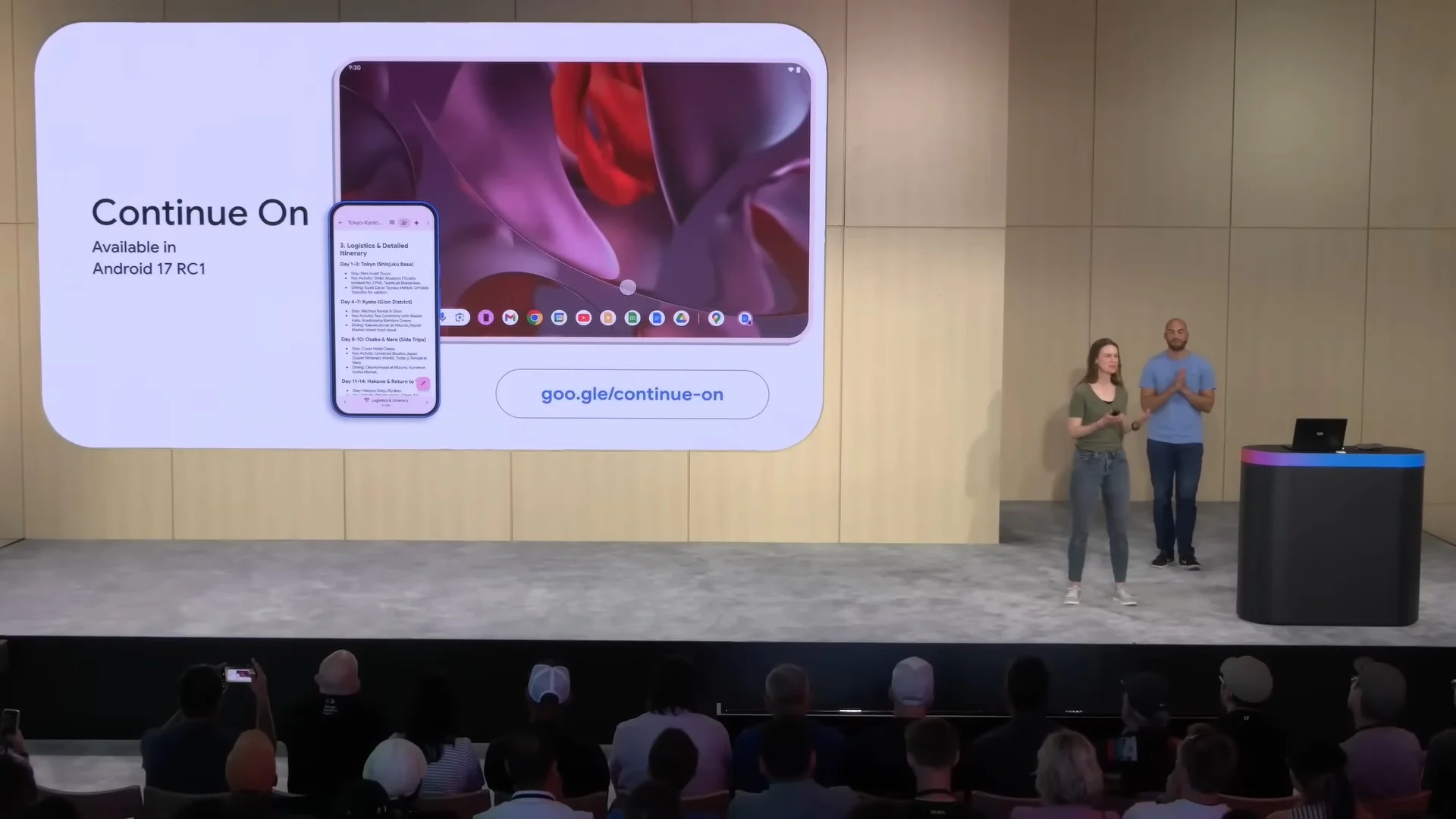
The era of interrupted workflows is coming to an end for Android users. Discover how Google's Continue On feature in Android 17 lets you seamlessly switch tasks between your phone, tablet, and PC, boosting your mobile productivity. By creating a unified session layer between devices, Google aims to solve the fragmented experience that has long plagued the open ecosystem, allowing users to pick up exactly where they left off without missing a beat.
The Evolution of Cross-Device Productivity
For years, the "handoff" experience has been a competitive battleground. Apple's Handoff set a very high bar for seamlessness, while Microsoft's Phone Link provided deep integration for Windows users. Google enters this arena with a strategic advantage: its services are inherently cross-platform. With Android 17, Continue On is not just a system-level trick; it is a developer API that allows any app to register its current state. Whether you are composing an email in Gmail, editing a document in Google Docs, or browsing directions in Google Maps, the session state is encapsulated and pushed to your connected devices.
The core architecture relies on Google Play Services and a new Nearby Sessions protocol. This evolution signifies a major shift from simple clipboard syncing to full contextual continuity, making it a strong contender for the default cross-platform standard in the hybrid work environment.
How Continue On Works Technically
Upon starting a compatible task, Android 17 creates a "continuation token." This token stores the exact UI state and data cursor within a sandboxed environment. When you move to another device, the token is transmitted via a secure, encrypted channel. The receiving device uses this token to deep-link directly into the app at the exact moment you left off. Unlike simple shortcuts, Continue On supports complex multimodal input, meaning you can start a document with voice dictation on your phone and refine it with a keyboard and mouse on your PC. Google positions this as a core productivity feature for the hybrid era, allowing dynamic workflows that adapt to your physical context.
A New Standard for Universal Compatibility
While Apple limits Handoff strictly to its own hardware, Google's implementation is designed for universality. The Continue On framework is expected to work seamlessly with Chromebooks, and through the "Continue On for Desktop" browser extension, it will bridge the gap to Windows, macOS, and Linux. This makes it an exceptionally powerful tool for home offices and enterprise deployments that rely on a diverse hardware fleet.
Optimizing Your Workflow for Continuity
To leverage Continue On, ensure you are signed into the same Google account across your devices. The feature is opt-in per app, giving users granular control over which activities are shared. Developers of major productivity suites and communication tools are expected to integrate the API, supporting use cases ranging from drafting a quick reply on a smart display to continuing a complex design project on a desktop workstation.
Pro Tip: To get the most out of Continue On, configure your "Preferred Handoff" devices in your Google Account settings. If you frequently work from a desktop, pin your PC as a primary handoff destination. For network optimization, enabling 5GHz Wi-Fi and Bluetooth Low Energy ensures that continuation tokens are transferred with the lowest possible latency, regardless of whether you are in a crowded office or a quiet home setup.
Is This the End of the Fragmented Workflow?
Google's Continue On feature in Android 17 is more than a neat trick; it is a fundamental infrastructure change for the open ecosystem. It provides a clear path for users to maintain flow states across different devices and form factors. As the rollout begins, the true test will be developer adoption and the reliability of the cross-device handshake. For the everyday user, this feature promises to solve a deeply frustrating modern problem: the discontinuity between your mobile and desktop life. It effectively decouples your work from a single screen, giving you the freedom to move without losing context or momentum.
Have you set up Continue On yet? What is the first task you hope to seamlessly hand off? Share your experience and wishlist with us in the comments below.
Frequently Asked Questions
Which devices are compatible with the Continue On feature?
Compatibility requires a device running Android 17 or later for mobile tasks. Desktop support is provided through ChromeOS or a dedicated web extension for Windows, macOS, and Linux. Users must be signed into the same primary Google Account across all devices for the feature to function.
Is the Continue On feature secure for sensitive work apps?
Yes. The session tokens are encrypted end-to-end using standard Google Play Services security protocols. Furthermore, developers must explicitly declare their app as "continuation-aware" in the Android manifest, allowing them to restrict which data is shared. Users can also revoke continue permissions from specific apps or devices at any time in the system settings menu under "Connected Devices."
Does the Continue On feature work if my devices are on different networks?
Ideally, devices should be on the same local network or linked via Bluetooth for the fastest handoff. However, the feature is designed to work over the internet using a mediation server, albeit with a brief latency period. The continuation token remains encrypted regardless of the network path it takes to reach your target device, ensuring security across VPNs or public Wi-Fi.
Will this feature drain my device battery faster?
The impact on battery is minimal. The background service listens for continuation tokens using lightweight APIs, specifically Bluetooth Low Energy and low-power Wi-Fi scanning. Google has heavily optimized the daemon hosting this service for Android 17 to ensure inactive sessions consume negligible power, making it safe to leave enabled on a daily driver device.
How do I disable the Continue On feature if I don't want to use it?
You can fully disable the feature by navigating to Settings > Google > Devices & Sharing > Continue On, and toggling the master switch off. Alternatively, you can manage it per device or per app from the same menu to maintain selective continuity for specific workflows while restricting others.