Forza Horizon 6 Steam Deck Performance Guide
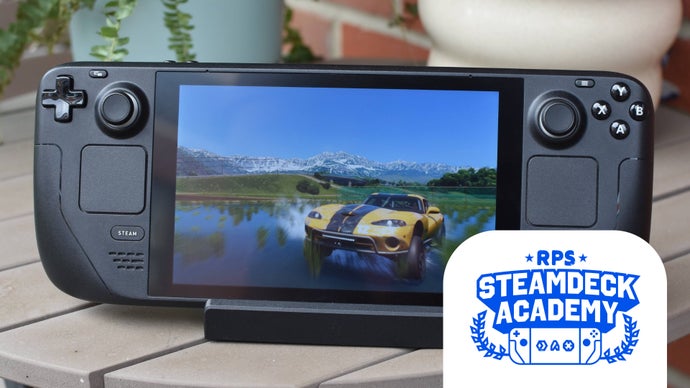
Forza Horizon 6 consistently achieves a locked 30 FPS on the Steam Deck at medium settings, with careful tuning opening the door to a stable 40 or even 60 FPS experience without sacrificing the core visual identity of the festival. This is the philosophy behind the Steam Deck Academy: Forza Horizon 6 settings guide. This arcade racer from Playground Games runs great on PC and Steam Deck. Learn single and multiplayer tips. We have tested every variable and compiled the optimal configuration to ensure your Horizon Festival runs fluidly whether you are racing alone or against the world.
Optimal Resolution and Framerate Configuration
The foundation of a smooth experience on the Steam Deck begins with the display settings. Set your resolution to the native 1280x800 to ensure pixel-perfect mapping. While the Steam Deck display is smaller, running at native resolution combined with FSR upscaling provides the sharpest image. We strongly recommend using the SteamOS built-in frame limiter over the in-game limiter. Setting the deck refresh rate to 40 Hz and capping the frame rate to 40 FPS provides the best balance of fluidity, input latency, and battery efficiency, offering a full 33 percent smoother motion than 30 FPS while demanding significantly less power than a full 60 FPS target.
For single player exploration, you can push for the 60 FPS cap by dropping to a Low preset and setting FSR to Performance. However, be prepared for dips in the dense urban environments of the new map. The 40 FPS target allows for Medium settings and FSR Quality, making the world look vibrant without the CPU bottleneck issues that plague higher frame rates.
Graphics Settings Deep Dive for the Van Gogh APU
Forza Horizon 6 is an incredible piece of optimization by Playground Games. The engine scales beautifully to the AMD Van Gogh APU. Here is the specific combination of settings that maximizes visual quality without compromising frame time consistency.
Texture and Environment Quality
This is the most impactful visual setting. The Steam Deck shared memory pool handles High textures easily. Setting Texture Quality to High ensures road surfaces and car models look detailed. Geometry and Environment Quality should be set to Medium. High settings introduce significant pop-in on the slower Deck storage, while Low settings make the world look barren. Medium offers a perfect compromise.
Shadow Quality and Reflections
Shadows are the primary CPU bottleneck on the Steam Deck. Setting Shadow Quality to Low or Medium is essential. The visual difference is minimal during gameplay, but the performance savings are drastic. Similarly, Reflection Quality should be set to Low. Cube map reflections look acceptable on the Deck screen, and turning off Screen Space Reflections prevents frame time spikes when driving near reflective surfaces.
FSR and Anti-Aliasing Strategy
FSR 2.2 is your best friend on the Steam Deck. Set the Anti-Aliasing mode to FSR 2.2 in the game video settings. Select the Quality preset for the 40 FPS target, or Balanced for a 60 FPS push. Avoid using the in-game resolution scale alongside FSR; let FSR handle the upscaling logic. This provides a much more stable image than the native TAA, which can introduce ghosting at lower frame rates.
Pro Tip: For the most consistent multiplayer experience, go into the Steam Deck Developer Settings and disable WiFi Power Saving. This prevents the wireless card from entering low-power states during intense network traffic. Additionally, in the game video settings, set World Car Detail to Low. This setting removes the high-detail polygon streaming for AI traffic and other player cars, drastically reducing CPU load when a large convoy passes by. The visual impact on your own car is zero.
Power Management and Battery Life Optimization
Battery life is a critical factor for a portable device. Forza Horizon 6 responds exceptionally well to TDP and GPU clock manipulation. For a locked 30 FPS session, set the TDP to 10W and GPU clock to 1100 MHz. This configuration consumes roughly 18W total system power, providing over 2.5 hours of gameplay. For the recommended 40 FPS target, increase the TDP to 11W and leave the GPU clock on auto. This keeps total power around 21W, offering around 2 hours of play. If you need 60 FPS for a competitive race, letting the Deck run at 15W TDP without GPU restrictions is necessary, but expect battery life to drop to around 1 hour 15 minutes.
Multiplayer Stability and Network Performance
Forza Horizon 6 multiplayer is seamless, but network consistency is key. The Steam Deck WiFi chip is capable, but you must configure it correctly. Besides disabling WiFi Power Saving, ensure you are connected to a 5 GHz network. The game handles desync well, but packet loss can cause opponents to teleport. If you are playing in a docked setup, a wired Ethernet connection is the gold standard for Horizon Life sessions, providing sub-1ms latency and zero packet loss. The Proton layer generally handles the anti-cheat perfectly with the standard Proton or GE-Proton builds.
Verdict: A Definitive Handheld Experience
Forza Horizon 6 is a masterclass in scalable development. It offers a deeply engaging single player campaign and a lively multiplayer world that both translate perfectly to the Steam Deck form factor. By dialing in the settings above, you transform the Steam Deck into the ultimate portable Forza machine. We encourage you to use this guide as your starting baseline and tweak the FSR preset to your personal preference. Have you found a specific TDP limit that works better for the new map? Share your custom settings profile in the comments below to help the community optimize their own festival experience.
Frequently Asked Questions
What is the best frame rate target for Forza Horizon 6 on the Steam Deck?
The 40 FPS / 40 Hz mode is widely considered the sweet spot. It provides a significantly smoother visual experience than 30 FPS while offering much better battery life and thermal performance than pushing for 60 FPS. It is the recommended target for most players.
Do I need to install Forza Horizon 6 on an SSD for optimal performance?
Yes, an NVMe SSD or a high-speed A2 rated microSD card is highly recommended. While the game loads on slower media, asset streaming can cause stuttering, especially in the fast-paced multiplayer modes. The internal SSD provides the best experience with minimal loading screens.
Can I use a different Proton version to improve performance?
While the default Proton works perfectly, some players report better shader cache stability and slightly improved frame times using Proton GE. It includes additional media codecs and patches that can stabilize cutscene playback and online connectivity.
How do I prevent the Steam Deck from overheating while playing Forza Horizon 6?
Forza Horizon 6 is well optimized, but long sessions will push the APU. Setting the TDP limit to 11W or 12W is the best way to manage thermals. The Steam Deck fan curve is aggressive enough to keep temperatures under control, but capping the FPS to 40 will significantly lower the thermal load on the system.
Does Forza Horizon 6 support mods on the Steam Deck?
Yes, since the Steam Deck runs Linux, you can access the game installation directory and install visual mods, traffic packs, or livery tools. However, use caution when modding for multiplayer sessions, as the anti-cheat system may flag unauthorized files. Single player modding is fully supported.